Tutorial 2: Getting started
GEOG-364 - Spatial Analysis
GEOG-364 - Spatial Analysis
Tutorial 2 Contents
This tutorial is all about the basics you need to run your labs. We covered most of this in Lab 1.
Tutorial 2A: Change settings
Everything in this tutorial is a one-off to get R and R-studio set up.
First, in an easy to access place on your computer, make a folder called GEOG-364. This is where all your labs and projects are going to live.
Opening R-Studio
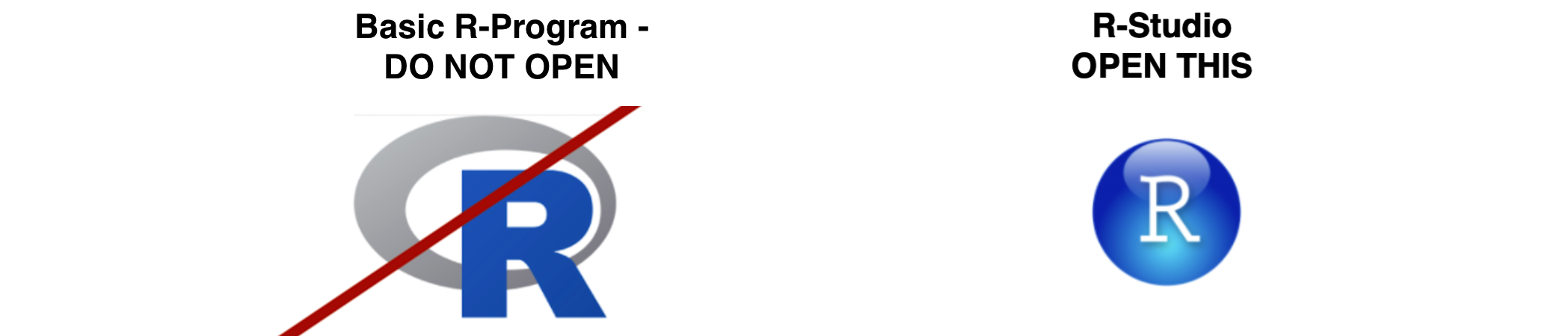
Now everything is installed, open R-studio (NOT R!). If you are using R-Studio cloud, you should in your workspace. Make a new R-Project and call it GEOG364_Lab1_PROJECT (or whatever lab you are working on)
You will be greeted by three panels:
- The interactive R console (entire left)
- Environment/History (tabbed in upper right)
- Files/Plots/Packages/Help/Viewer (tabbed in lower right)
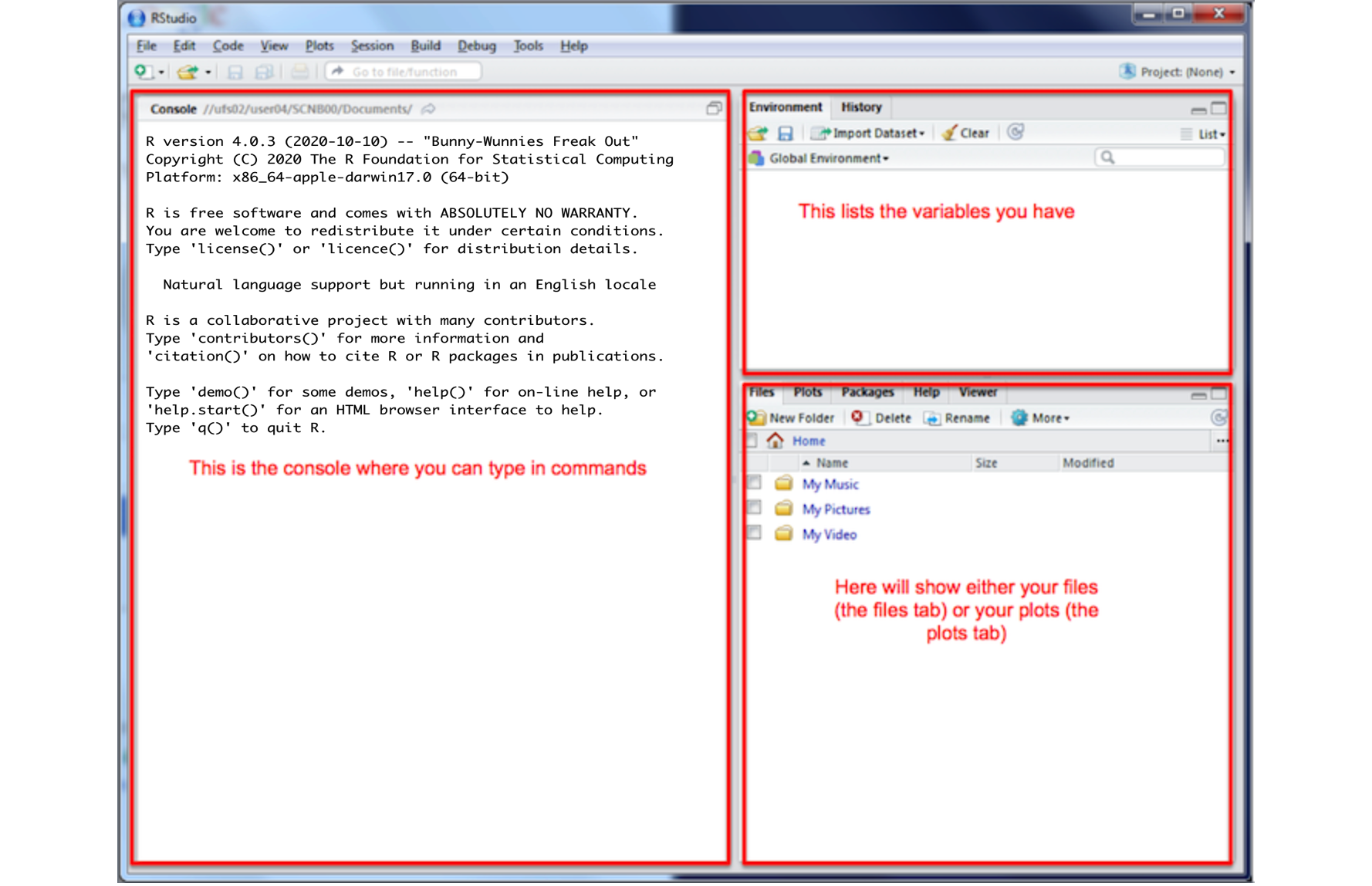
If you have used R before, you might see that there are variables and plots etc already loaded**. It is always good to clear these before you start a new analysis. To do this, click the little broom symbol in your environment tab
Change a few settings
R-studio wants to be helpful and will try to re-load exactly where you were in a project when you log back in. This can get confusing, so we are going to turn this off.
ON A MAC: Click on the R-studio menu button on the top left of the screen, then click Preferences.
ON A PC/R-Studio Cloud: Click on Tools-> Global Options -> Preferences
Now:
- UNCLICK “Restore most recently opened project at startup”
- Set “Save workspace to .RData on” exit to Never
- You can also click the appearances tab to change how the screen looks.
Tutorial 2B: Install packages
What are packages?
As described in Tutorial 3, we programme in R by asking a series of commands. R is open source meaning anyone can create a command. Over the last 20 years, millions of commands have been written.
These tend to be grouped together into collections called
Packages or Libraries (two names for the same
thing). They are similar to apps on your phone. For example, one package
contains the complete works of Shakespeare; allows interactive website
design; another allows advanced Bayesian statistics.
There is a package for literally everything and there are now about 20,000 packages available. You can see the full list here: https://cran.r-project.org/web/packages/available_packages_by_name.html
This is far too many to store on your computer, so most live on the internet in an online (free) “Package Store”. You can download the ones you want, ready to load later.
So to access the commands in a package we need these two steps:
- ONCE ONLY: Download the package from the internet
- EVERY TIME: Load the packages you want
A close analogy is your phone: There are millions of apps available from banking, to 50 different calendar apps. You don’t have every app in the world installed on your phone - and you don’t have every app you do download running at the same time. Instead you download the apps that you think you will need (occasionally downloading a new one on the fly) - and when you need to use an app, you click on it to open.
How to download/install packages
Look at the Packages tab next to the plot one, you can see which packages/libraries are already pre-installed onto your computer.
If the package you want isn’t listed:
- Click the INSTALL button in the Packages tab, then start typing the package name and it will show up (check the include dependencies box).
OR
In the console, run the
install.packages()command on the package you want to download with quotes around the package name e.g.install.packages("bardr")
OR
- R will sometime tell you that you are missing a package (sometimes a little yellow ribbon - say yes to install!)
Note, if you run this command mulitple times, or the packages is already loaded, R-Studio might want to restart and sometimes gets confused. If it keeps asking, close R-studio, reopen and try again. If it really doesn’t want to work, open R itself and run in the console there.
Try installing the bardr package onto your
computer
Tutorial 2C: Create an R-Project
You need to make a new project before you start EVERY lab!
What are R-projects?
An R-project is a special folder that will store everything to do with each lab in one place on your computer. This is incredibly useful - it means that if you switch from R-Cloud, to the lab computers, to your laptop, all you have to do is to move the folder and everything will just work. Learn more here.

Creating a R-project
This step is needed for EVERY lab.
On R-Studio Cloud:
Note, if you are running R-Studio Cloud, you just need to click “Create Project” and name it.
Website created and maintained by Helen Greatrex. Website template by Noli Brazil